

The appointment is in the calendar. The reminder is on a sticky note. Writing the message takes a minute. Remembering to send it between a supplier call and the next customer is the part that keeps getting missed.
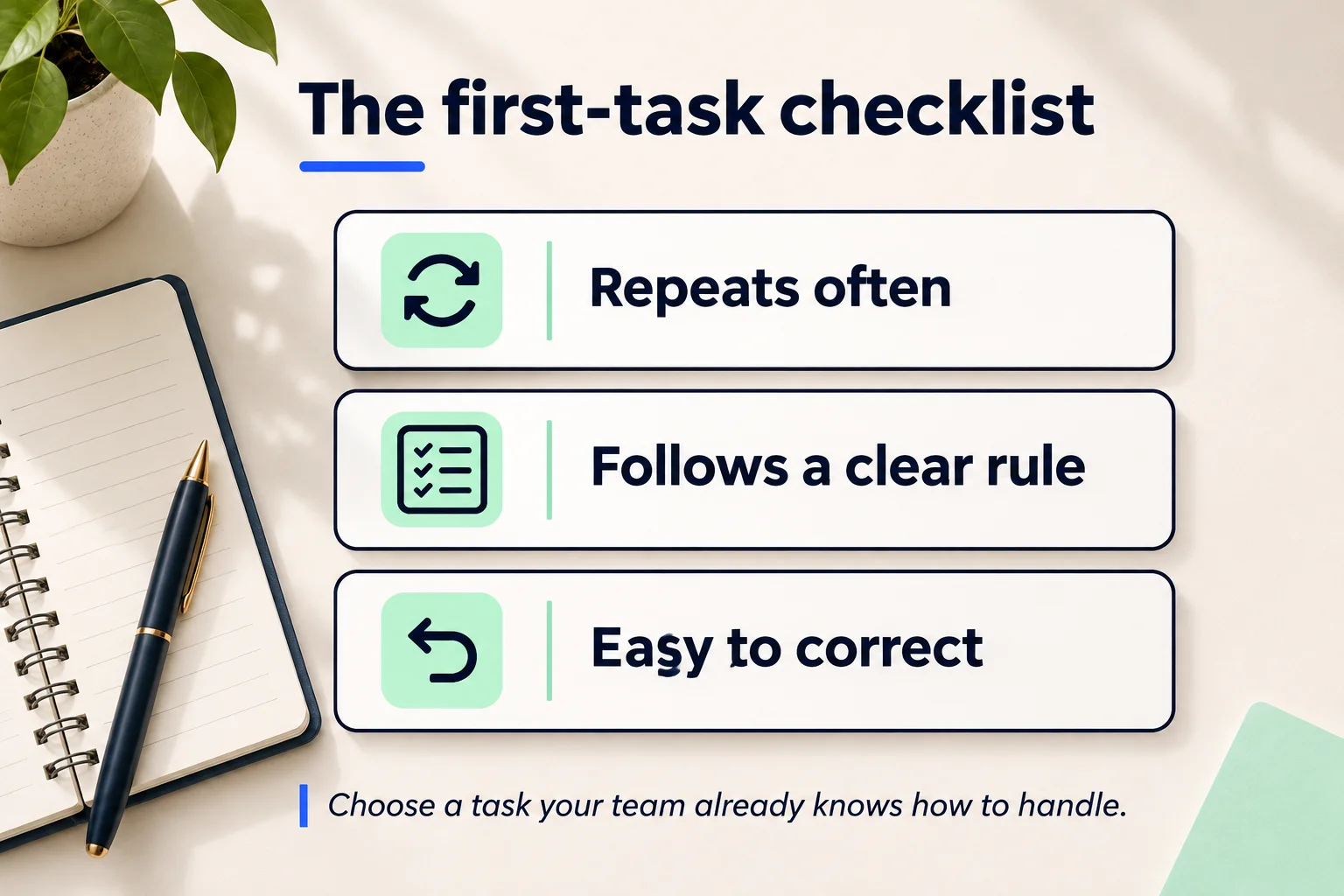
The best first automation for a small business is a task that happens often, follows a clear rule and is easy to put right if something goes wrong. Sending an appointment reminder, logging a website enquiry or gathering figures for a weekly report can all be good starting points. Pick the step your team already agrees on and can check after it runs.
It helps to think about where the work gets stuck. If enquiries pile up because nobody knows whose turn it is to reply, start by giving each enquiry an owner. That one change may do more for the team than writing a faster reply.
Choose a task your team already understands
Ask the person who does the job to show you the last time they did it. Watch the whole thing, including where they look for information. Sending a reminder sounds simple until you see someone check two calendars and call a colleague to confirm which one is right. Agree on where the correct booking details live before you connect anything to them.
Use three checks to compare the tasks on your list:
- Does it happen often enough to matter? Count how many times it came up last week and roughly how long it took. Include looking up details, copying them across and chasing replies. Those minutes are easy to miss if you only time the last step.
- Does it follow a clear rule? “When a website enquiry comes in, save it to our shared list and tell the person on duty” is a rule. “Work out what this project should cost” depends on the details and needs someone who understands the job.
- Can someone spot and fix a mistake? A duplicate task on an internal list is easy to remove. An email with the wrong appointment time takes more work to put right. Pick something you can check and pause during a trial.
Frequency is a useful starting point. Also ask what happens when the job is missed. A report that takes ten minutes to prepare might be less urgent than a thirty-second task that gets a new enquiry to the right person. Ask your team which job they have to go back and fix most often.
Four small business tasks worth considering
| If this keeps happening | A good first step | Keep with the team |
|---|---|---|
| Website enquiries get buried in a shared inbox | Save each enquiry to one list and assign an owner. | Decide how to respond and what to quote. |
| Staff have to remember to send visit reminders | Send one approved reminder at the agreed time. | Handle schedule changes and requests that need a call. |
| Someone copies the same figures into a report every week | Collect the agreed figures in a draft. | Check the date range and explain what changed. |
| The shop runs out of a frequently used supply | Alert the person who orders it when recorded stock drops to or below the agreed level. | Check the actual stock and approve the order. |
Each example starts with a single step. A shop can try a stock alert for one item and see whether it comes early enough to help. That gives the person who orders supplies something specific to test before the same rule is used for everything on the shelf.
Once you’ve chosen, write three lines: What starts the task? What happens next? When should a person step in? The event that starts the work is called a trigger. It could be a new form submission, a booking marked confirmed or a particular time on Monday morning. Ask someone else on the team to read your three lines. If they would handle the job differently, agree on the process first.
Decide if the task needs AI
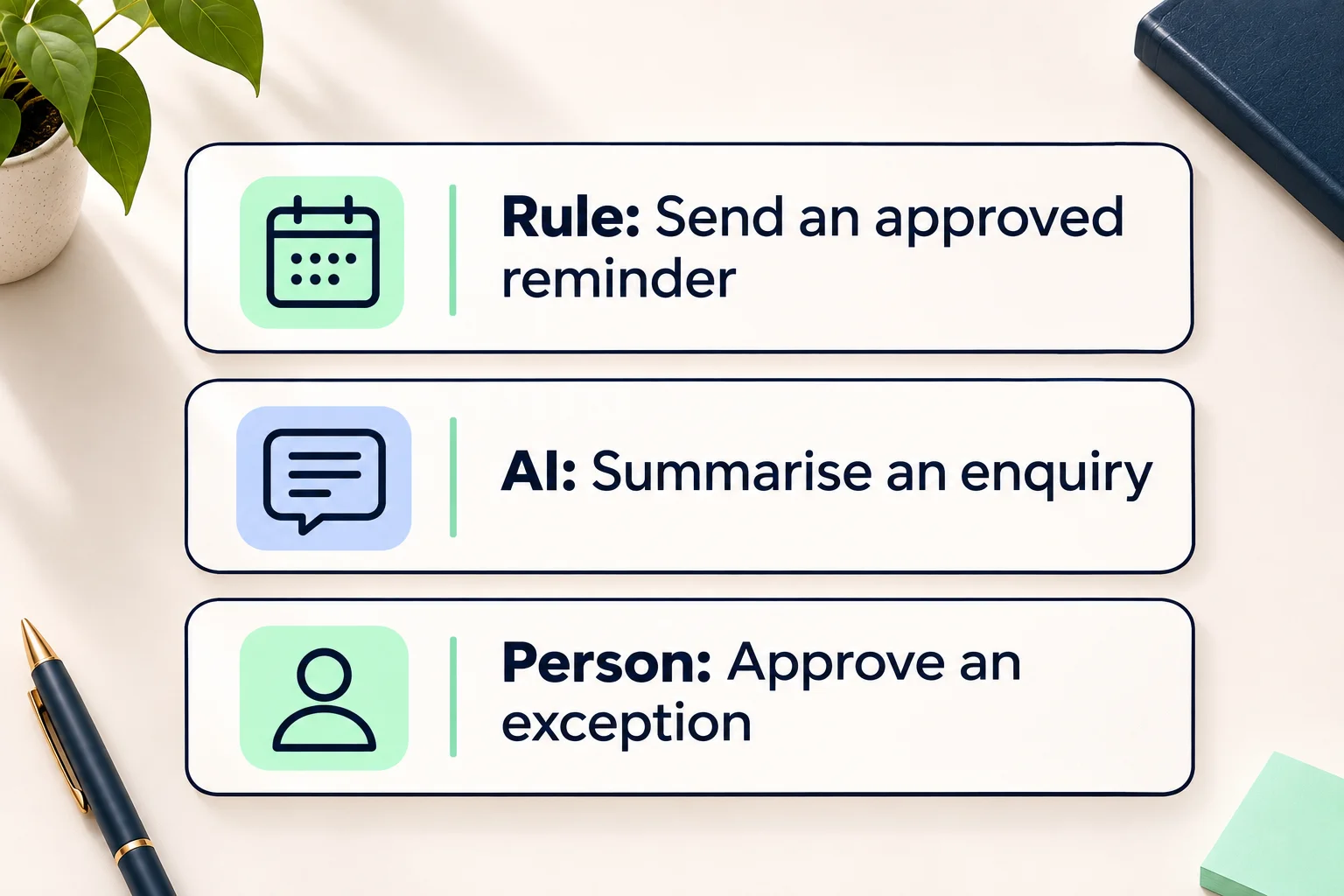
An approved reminder with a known send time only needs a rule. The software checks the appointment and sends the message the team has already written. Given the same booking details, you want the same action every time.
AI can help when the information arrives in different forms. Say someone writes, “Our washing machine stops halfway through. We’re in Tada and someone’s home after four.” AI could pull out the problem, area and preferred time for the person handling the enquiry. That last detail is a preference. The customer hasn’t said which day they’re available, and the team hasn’t checked the calendar yet.
If you use AI for a step like this, ask it to show what’s missing. A simple instruction could be: “List the issue, area and preferred time stated in the enquiry. Mark anything the customer didn’t provide as missing.” Give it only the details it needs. Let the person replying see the original message alongside the summary so they can check it and ask the right follow-up question.
Keep prices, refunds and unusual requests with the person who can make the call.
Example: An appointment reminder for a repair business
Say a repair business books home visits in one calendar. A customer confirms a visit for Thursday at 10 a.m. The team already sends a confirmation when the appointment is booked. They want a short reminder to go out at 10 a.m. on Wednesday as well.
Here’s how the three lines become a workflow:
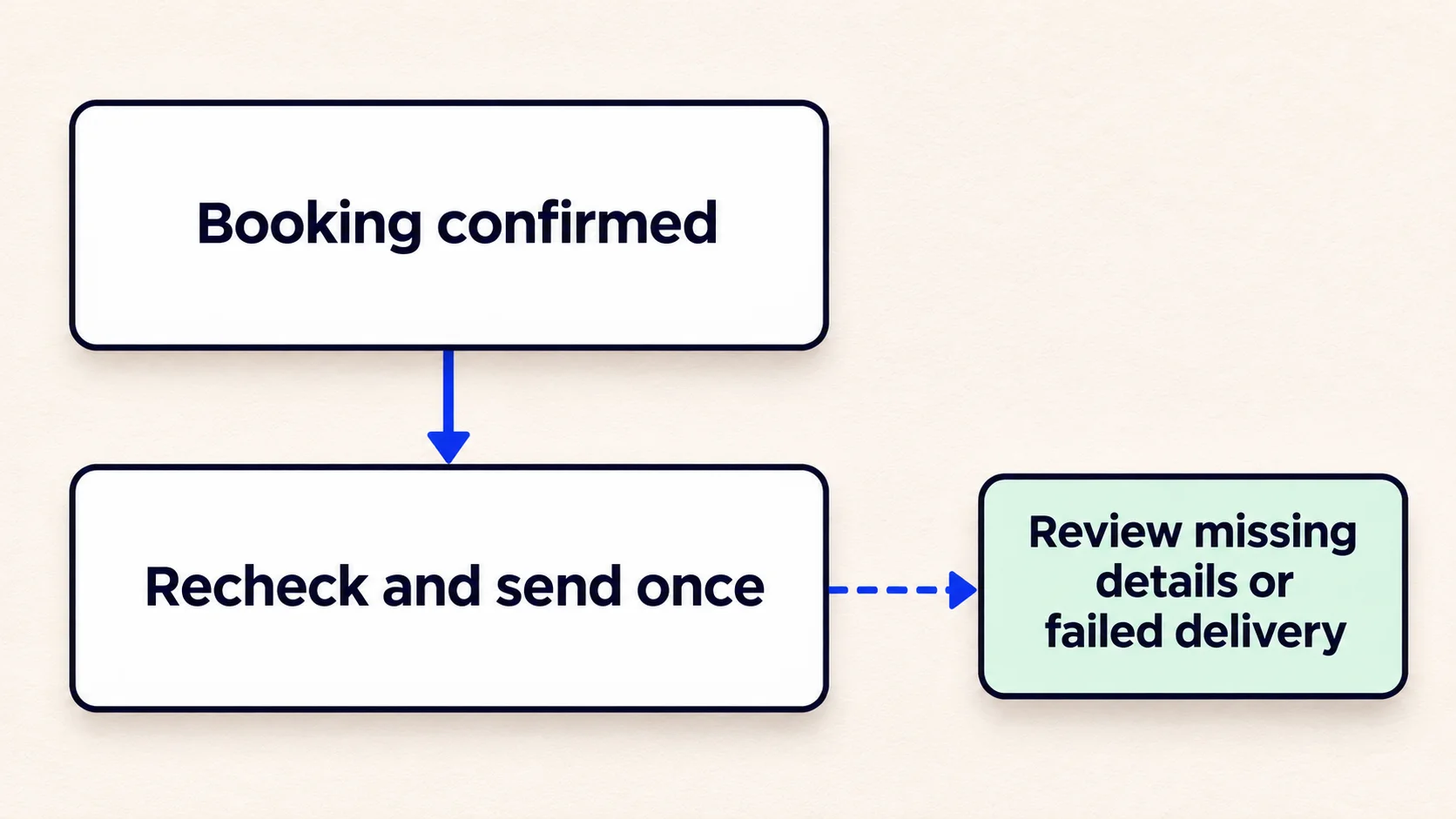
- What starts it? A confirmed booking. Use the booking reference, visit time and customer email address from the booking system. Schedule one reminder for that booking and visit time, due 24 hours before the visit. In this example, visits booked with 24 hours’ notice or less get the usual confirmation only.
- What happens next? Check the booking before sending. At the scheduled time, read the latest record. Check that the visit is still confirmed for the same time, the email address is present and no reminder has gone out for that booking and time. Send the approved message and record that it was sent.
- When should someone step in? When the workflow can’t finish. Flag missing email addresses and failed sends for whoever manages bookings. Give them the booking reference and a short reason so they know what to check.
The email itself can be short:
Subject: Reminder: your repair visit on Thursday
Hi Meera, a quick reminder that your repair visit is booked for Thursday, 12 November, at 10 a.m. If you need to change the time, reply to this email and we’ll check what’s available.
Use the date and time from the current booking. If the team agreed to arrive between 10 a.m. and noon, put that window in the reminder. Pick a reply address the team actually checks so customers have somewhere to ask about a change.
When a visit moves, stop the old reminder and schedule a new one if the updated booking qualifies. If the visit is cancelled, stop the reminder. If it’s unclear whether a send went through, have the coordinator check before trying again. Keep a record of what happened so the booking coordinator can answer a customer without checking a second calendar.
Test the bookings that don’t go to plan
Run a few sample bookings with a test inbox before sending anything to customers. Check both the inbox and the booking record. If a visit is cancelled and no reminder arrives, for example, the record should show that the send was stopped. That helps the team tell a deliberate skip from a failed run.
| Try this | What should happen |
|---|---|
| Book a visit more than 24 hours ahead | One reminder is sent 24 hours before the visit. |
| Book a visit for later today | The customer gets the usual confirmation only. |
| Move Thursday’s 10 a.m. visit to Friday at 2 p.m. before the old reminder goes out | The old reminder stops. The new one is due Thursday at 2 p.m. if the updated booking qualifies. |
| Cancel the visit before the reminder is due | No reminder goes out. |
| Process the same booking event twice | One reminder is scheduled and one email goes out. |
| Leave out the email address | No reminder goes out. The coordinator gets a task to check the address. |
| Simulate a failed send | The coordinator gets a task with the booking reference and failure reason. |
Check that the calendar and the automation use the same time zone. Ask the booking coordinator to review a test failure. Can they see which booking it belongs to and what they need to do? If the only alert is “Something went wrong,” add the reference and the reason before you go live.
Start the trial with one type of visit. Tell the team which reminders the system will handle so they don’t send a second copy by hand. Agree on who can pause the workflow and where they can find the list of reminders that still need attention. If you pause it, check what has already gone out before taking over manually.
Check whether you’re saving time
Measure a normal week before changing the process. Include checking the booking, sending the message and dealing with changes. If 20 reminders take three minutes each, that’s an hour. If a comparable week after the change takes 25 minutes to review the sends and make corrections, you’ve saved 35 minutes of staff time that week. Those are example numbers. Record your setup time and any ongoing costs separately.
Compare weeks with a similar number of bookings. If one was much busier, look at time per booking so you can see whether the process itself improved. Check what happens on a day with several cancellations or changes as well. That’s when the team will find out whether the review list is useful.
Look at reliability alongside time. Did the reminders that were due go out on time? Did the coordinator see the cases that needed help? For enquiries, the useful measure might be how many reach the right person and how many become customers. Choose a measure that reflects why you wanted to fix the task in the first place.
When the trial ends, ask the person who used to do the job how their day changed. If checking the new alerts takes as long as sending the reminders did, keep one clear alert for each booking that actually needs attention.
Can you start with the tools you already have?
Check your current booking and email tools first. For the reminder above, the workflow needs to read the latest booking details, schedule a message and show when a send fails. If it can’t reliably tell whether a booking has moved, try a smaller step: create a daily list of confirmed visits for someone to check before sending reminders.
For a simpler job like logging enquiries, a shared spreadsheet can be enough. Give each enquiry a reference, agree where the team will update its status and test what happens if the same form comes in twice. Keep the record in a place the team already checks. A new list won’t help much if everyone still has to search three inboxes to find out who replied.
Copy this worksheet for your first workflow
Fill this in with the person who does the work. Use a recent example so you can point to the actual form, calendar entry or message involved.
- Task: What single job do you want to hand off?
- Starts when: What happens before the job begins? Where does the information come from?
- Routine step: What should happen when the details are complete?
- Needs a person if: What change, missing detail or failed action should stop the routine?
- Owner: Who checks exceptions, and how do they pause the workflow?
- Trial result: What will you compare with the way you work today?
Read it back using one ordinary example and one that went wrong. You may find a detail that only one person on the team knew, such as which calendar to trust when a visit moves. Settle that before you connect the tools. It’s easier to fix a line on paper than to untangle a week of messages.
Pick one job to try this week
Think of one thing you had to remember twice today. Map that job, try it with sample information and give someone responsibility for the exceptions. Once the team can rely on that step, look at the next job it hands off to. You’ll have a better sense of what’s worth changing and what still needs a person.
If you’d like help mapping the steps, tell our AI and automation team how you handle the job today.