

A website enquiry arrives at 7:30 on Friday evening. Someone sees the notification on their phone and assumes a colleague will reply. On Monday, the customer sends the same question again. The form worked. The team just never agreed on who should pick it up.
To automate website enquiries, save each valid form submission to one list, give it an owner and send the customer a short receipt. Set a reminder if your team hasn’t replied by the agreed time. Before following up with a customer, check whether they’ve already replied, booked or asked you to stop.
This guide starts at the moment someone presses Send. If few visitors reach the form in the first place, start by looking at why your website gets visitors but few enquiries. A better handover helps once someone has made contact.
Give new enquiries one place to land
Open your last five enquiries. Can you tell who replied, what they said and what still needs to happen? If the answers are spread across several inboxes, a shared list is a useful first change. You can use a spreadsheet for a small team or a customer relationship management system (CRM) if you already use one. Choose a place your team will check and update during the day.
Start with the fields you need to reply: a name, a contact method and a short description of what the person needs. Add a service choice if it changes who should handle the enquiry. A website studio might ask whether the person needs a new website or help with an existing one. Let people choose “Not sure” if they don’t know. An extra question is worth asking when someone on your team will use the answer.
In the enquiry list, keep the original message, a unique reference, the received time, the assigned person and the current status. Add a reply deadline and a place to record the last message or call. If you keep a copy of the submission in WordPress, agree where your team will update the enquiry’s status. Everyone should know which list tells them what to do next.
Connect the form to the person who will reply
Suppose a small website studio gets an enquiry from Ananya, who runs a restaurant in Nellore and wants to replace its old website. She chooses “New website” on the form and asks whether the studio can help with menus and online booking. Here’s what should happen after she presses Send.
1. Save the enquiry and give it a reference
Save the message and contact details as one enquiry, with a reference such as WEB-104. Keep the form’s submission ID with it. If a connection retries the same submission, use that ID to recognise it and avoid creating a second record or sending another receipt. A second request from the same email address may be a different job. Let the owner decide whether it belongs to the earlier conversation.
If the connection to your enquiry list fails, keep the original submission in the form’s saved records if your setup supports that. Tell the person on duty what needs to be recovered. If you couldn’t save the request anywhere, show the visitor an honest error and an alternative contact method. An email saying “we got it” should follow a successful save.
2. Assign one owner and tell them what to do
The studio sends new website projects to the project lead on duty. A request about an existing site goes to support. A request marked “Not sure” goes to the person on duty to read and assign. Give that person a backup, and flag any record the system couldn’t assign so someone can claim it.
The alert can be simple: “WEB-104: New website enquiry. Review and reply by 11 a.m. Monday.” Include a link to the record so the owner can see the full message. A notification to a group can help people see what came in. The record still needs one person responsible for the next reply.
3. Send a receipt from an inbox someone checks
Once the enquiry is saved and has an owner, send one acknowledgement. Use a sender address the customer can recognise and a reply address your team checks. If you mention response times, use a window your team can meet on a busy day.
Subject: We received your website enquiry (WEB-104)
Hi Ananya, thanks for getting in touch about your restaurant website. We’ve received your message. Our team reviews new enquiries during working hours, Monday to Friday. If you’d like us to see your current website, you can reply here with the link.
That message tells Ananya she can add something without filling in the form again. It doesn’t answer her question about menus and bookings. Keep the receipt separate from the first reply your team writes.

Set two different follow-up rules
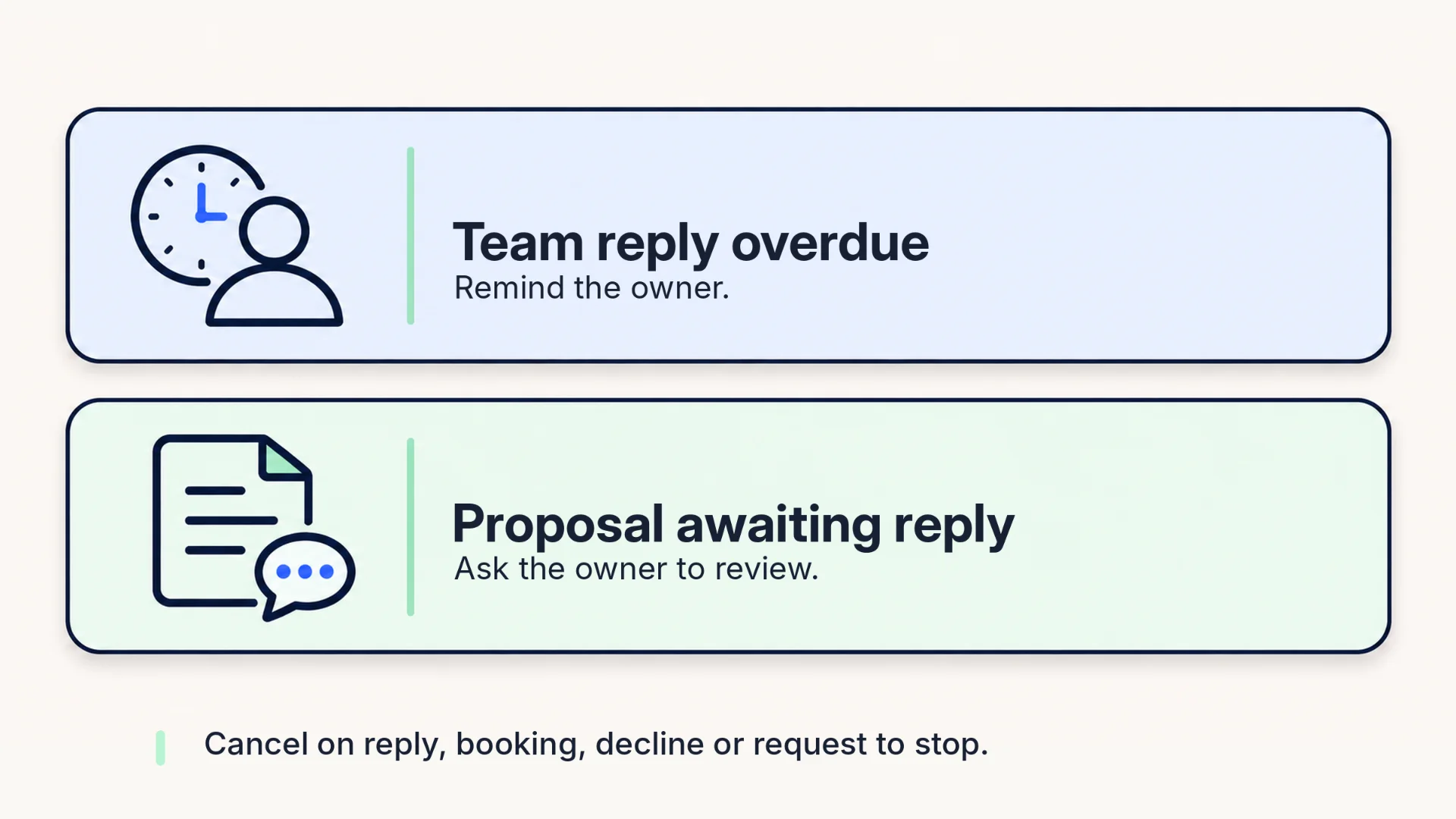
An internal reminder is for your team when a customer is waiting for an answer. A customer follow-up comes later, when your team has answered or sent something and is waiting to hear back. Give each one a clear starting point and a reason to stop.
Remind your team if a reply is overdue
In this example, the studio works Monday to Friday, 9 a.m. to 6 p.m., and aims to reply within two working hours. Ananya’s Friday evening enquiry is saved and acknowledged that night. The clock starts at 9 a.m. on Monday, so the first reply is due at 11 a.m., assuming Monday is a working day.
Say the project lead replies at 10 a.m. and asks how the restaurant currently takes bookings. They record the reply and set the status to Waiting on customer. At 11, the workflow checks the current status and skips the reminder. If the enquiry is still waiting for the team, it sends one reminder to the owner. Set the timer in your business time zone and include days you’re closed. Agree who takes over if the owner is unavailable.
A quick phone call counts as a reply if it answers the enquiry or agrees a next step. Record it on the enquiry. Otherwise, the reminder only sees an open record and may ask someone to do a job they’ve already done.
Give the owner a date to check back with the customer
The project lead speaks with Ananya, then emails a proposal. The status changes to Waiting on customer. The studio could set a task for the owner to review the proposal after two working days. Before sending anything, the owner checks whether Ananya has replied, booked a call, declined or asked for more time. A customer who says “I’ll know next Thursday” has already given you a better date than the default timer.
If a follow-up still makes sense, it can be as simple as this:
Hi Ananya, I’m checking in on the website proposal I sent on Tuesday. If you have questions about the menu pages or how bookings would work, I’m happy to talk through them.
Keep the message about the enquiry and use the channel the customer expects. For a first version, set one review task per proposal and let the owner decide whether to send a message. Cancel the task when the customer replies, books, declines or asks to stop. Keep newsletters and other promotional messages separate from this process.
| Enquiry status | What it means | What happens next |
|---|---|---|
| New | The request is saved and nobody has replied yet. | Assign an owner and set the first reply deadline. |
| Waiting on us | The customer has replied or the team owes another action. | Cancel the pending customer follow-up and set a team deadline. |
| Waiting on customer | The team asked a question or sent a proposal. | Stop the team reminder. Set a review date if it would help. |
| Closed | The enquiry was resolved, booked, declined or closed at the customer’s request. | Record the outcome and cancel pending reminders. |
If someone answers by phone or in another inbox, update the same record. The reminder is only as useful as the status it reads.
Start with the form and tools you already use
If you use the Elementor Form widget on WordPress, Actions After Submit is where you choose what happens next. Collect Submissions can save a copy in WordPress. A Webhook can pass the submission to another system automatically. Use that handoff to create the enquiry in your working list, and verify that it arrives with the right fields, owner and timestamp.
Choose one system to send the customer receipt. If the form and the CRM both send it, a single enquiry can generate two emails. Let the workflow that can verify the save send the receipt. If replies don’t sync to your enquiry list, give the team a simple way to mark a reply or change the status by hand. Keep customer follow-ups as review tasks while you check that the team can keep the record current.
If a receipt bounces, the enquiry still belongs to the owner. Record the failed email on the enquiry and have the owner check the address. If the person supplied another way to reach them about this request, the owner can decide whether to use it. Keep failed sends visible in the same list so a problem with email doesn’t look like a quiet day. If you can’t tell whether a receipt went out, check the send history before trying again.
Rules are enough for a first setup: save a form, assign a person and set a deadline. If longer messages take time to read, AI can draft a short summary for the owner. Keep the original message beside it and leave decisions about fit, price and availability with the team.
Test what happens on a busy day
Submit test enquiries with addresses your team controls. Look at the form’s saved submissions, the enquiry list and the test inbox. A clean confirmation on the website tells you the form accepted the submission. Check the other steps to see whether the team can actually act on it.
| Try this | What you should see |
|---|---|
| Send a normal new project request | One saved enquiry, one owner, one receipt and a reply deadline. |
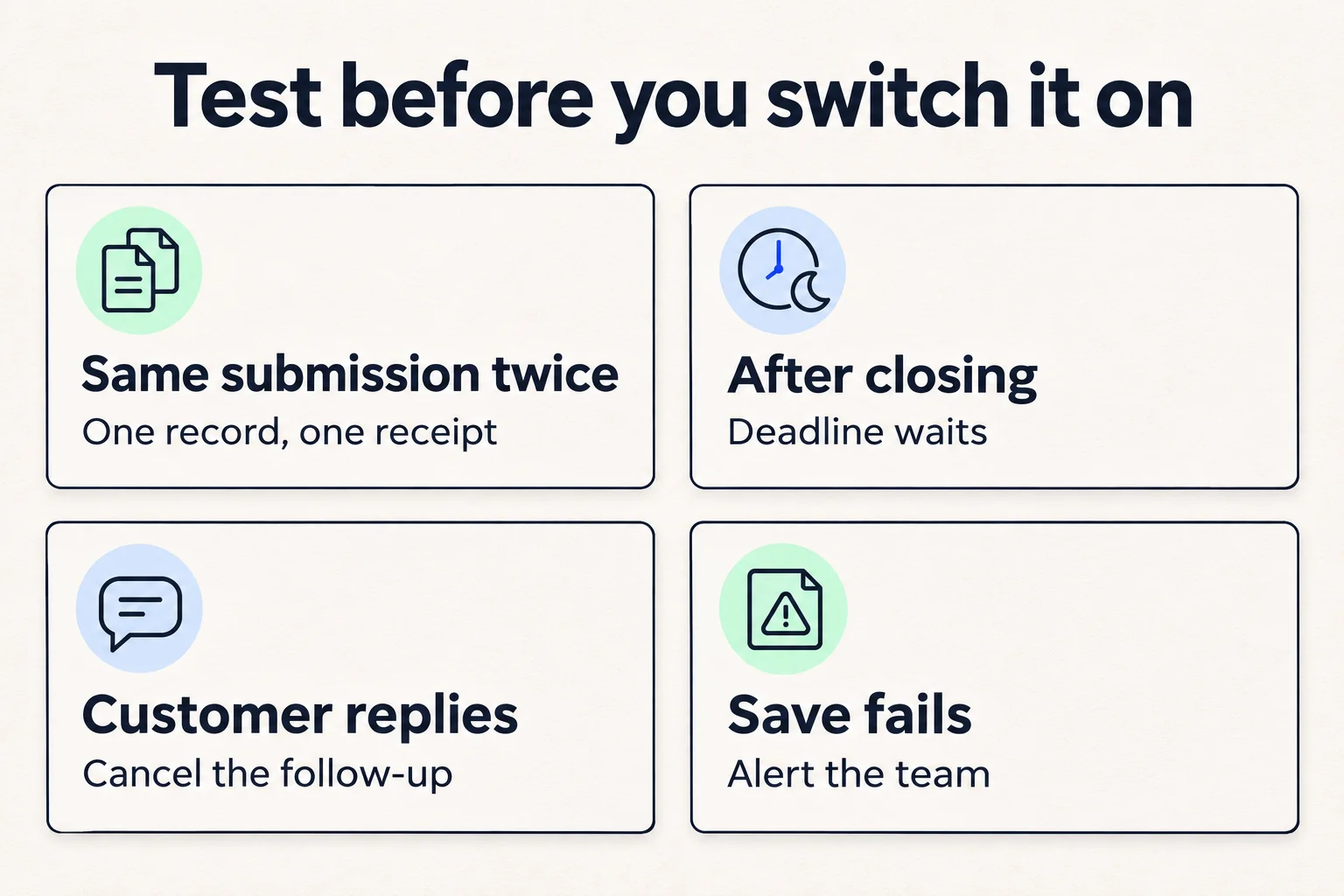
| Deliver the same submission to the workflow twice | One record and one customer receipt. |
| Send it after closing on Friday | The enquiry is saved. The team deadline falls in the next working window. |
| Route it when the usual owner is away | The backup can see it and knows they own the reply. |
| Reply before the team reminder is due | The reply appears on the record and the reminder stops. |
| Reply to a proposal before the review date | The customer follow-up task is cancelled and the team can see the reply. |
| Close the enquiry or record a request to stop | Pending reminders for that enquiry are cancelled. |
| Simulate an email delivery failure | The enquiry stays open with its owner and the failed receipt is visible. |
| Break the connection to the enquiry list | The team can find the saved submission and is alerted to recover it. A receipt that depends on that save waits. |
Try one day with a colleague acting as the customer and someone else as the owner. Ask the owner to find the request without telling them where it landed. If they have to check two inboxes or ask whether somebody else has called, fix that handover before you turn on more reminders.
Start the trial on one form. Compare what the form accepted with what reached the enquiry list at the end of the day. Make sure someone knows how to pause messages if a rule misfires. If you pause follow-up, leave form collection running.
Check whether people are getting a reply
For the first week, look at valid enquiries, first staff replies within your target and enquiries still waiting past the deadline. Keep receipts out of the reply count. Add the outcome when you know it, such as booked, declined or outside the services you offer. The guide to clicks, enquiries and customers explains how these measures fit into the bigger picture.
When you review response times, keep enquiries that are still within their reply window separate from overdue ones. Friday night’s request may still be on time when you open the list on Monday morning. Leave test forms, spam and duplicate submissions out of your valid enquiry count.
Say 18 valid enquiries came in. Fifteen got a staff reply on time, two were answered late and one is still open past the deadline. Check that open enquiry first. Then look at the two late replies. If both reached a person who was off that day, fix the backup rule. That tells you more about what to change than a count of the acknowledgement emails.
Start with the next five enquiries
Pick one form and one owner. Save the next five valid submissions, send a receipt and see whether each person gets a reply without someone having to chase the team. Add the customer follow-up task once the handover works and replies are being recorded.
If you’d like help connecting the form to the people who answer it, see how we approach enquiry automation or show us what happens when your next request comes in.